> ## Documentation Index
> Fetch the complete documentation index at: https://docs.orgnise.in/llms.txt
> Use this file to discover all available pages before exploring further.
# Workspace
> Learn how to create and manage workspaces in Orgnise
Workspace comes on the second level of hierarchy after **Team**. It's a place where you can create collections related to a single entity.
For example, one Product team can have an Engineering Wiki, Product Doc, Sprint planning, Marketing, and other **workspaces** belonging to the team.
**Workspace** can have a **collection of pages** that users can add content to and these collections could even have nested sub-collections, creating a hierarchical structure.
## How to create a Workspace?
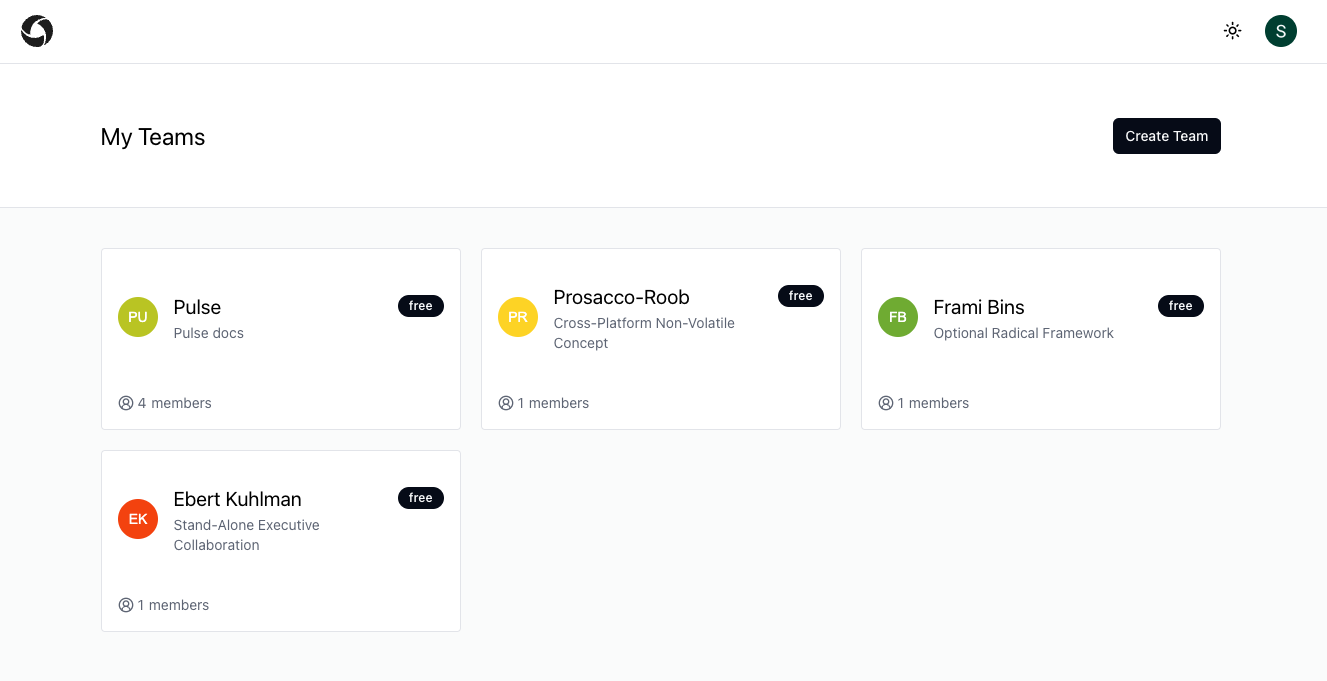
1. Select the team you want to create a workspace for. You must have owner or moderator permissions to create a workspace.
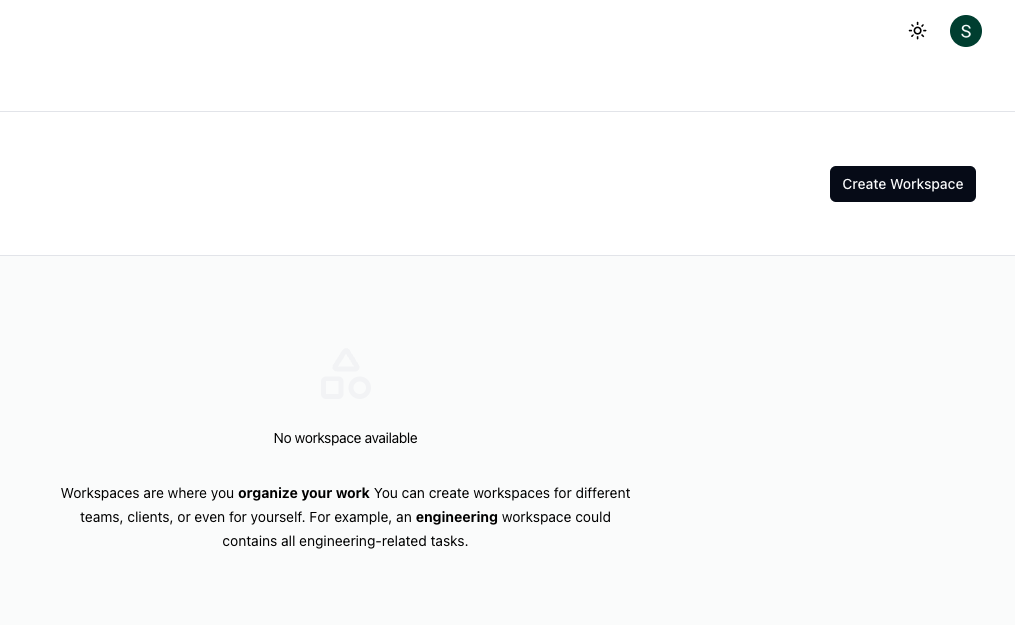
 2. Click on the **Create Workspace** button
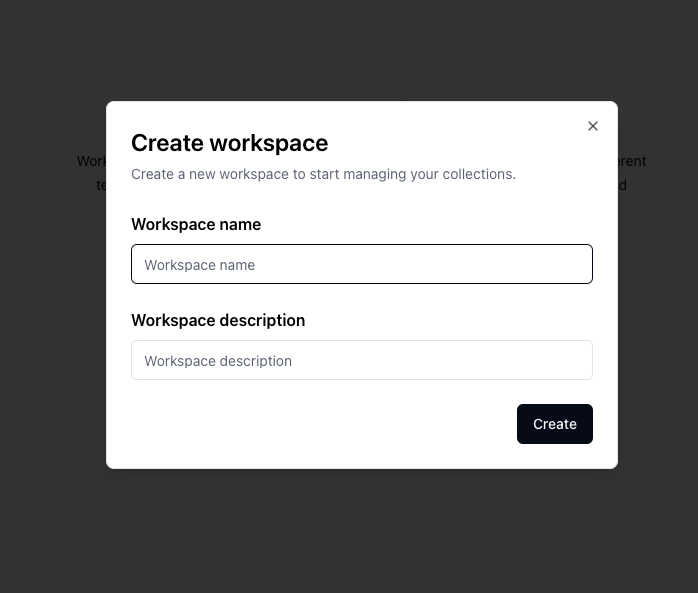
 3. Enter the **Workspace Name**
4. Enter the **Workspace Description**
3. Enter the **Workspace Name**
4. Enter the **Workspace Description**